 Nederlands
 English
I have a terrible secret, even though I would consider myself a ‘linux-guy’ I still dual-boot Windows. And although I would love to kick Windows to the curb, there is one application that keeps me chained to Microsoft’s OS, Ableton Live.
For many years now, whenever I install a new Linux OS, I spend some evenings in trying to get Ableton Live to work with WINE, but I could never do it. Either the performance is horrible, it can’t recognize my audio interface or the WineASIO driver wouldn’t work.
But today I have finally managed to get Ableton working flawlessly on my relatively underpowered laptop. The example liveset plays without gaps, while maxing out at about 60%.

Before we start
This setup requires X11!
I wasn’t able to get acceptable performance on my machine using Wayland. WINE’s Wayland support is still in development, so this is to be expected. This might improve in the future, or it might not, but for now this is X11 only!
Another significant detail about my setup is that I’m using Pipewire (and wireplumber) for my audio backend.
Steps
Note: The given commands are specifically for Arch and derivatives like Manjaro. Make sure you use the right comands, package-names and file-locations for your distro.
1. Setup wine
Install wine and winetricks using your distro’s package manager.
# For Archlinux
sudo pacman -S wine winetricks
Before we can use WINE to install Ableton, we need to create a new ‘prefix’. A prefix is basically a folder containing the virtual windows environment. Things like the windows registry and windows DLLs are stored there. To create a new prefix we can use wineboot.
# Create a new directory
mkdir ~/ableton-prefix
# Set the location of this folder as the WINEPREFIX variable
# and run wineboot
WINEPREFIX=~/ableton-prefix wineboot
Now that we have created this virtual windows environment, we can use winetricks to install required Windows DLLs into that prefix.
# Again use the WINEPREFIX variable to use the folder we just created
WINEPREFIX=~/ableton-prefix winetricks
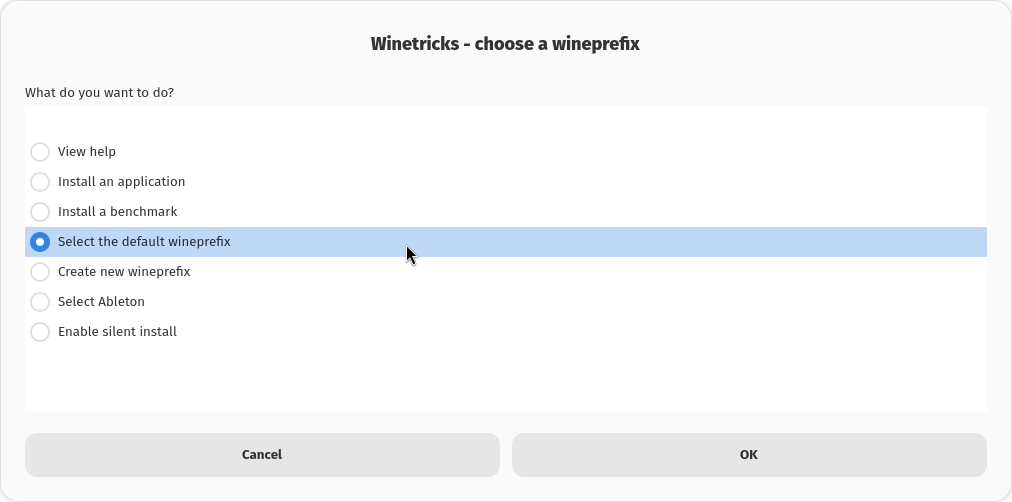
Winetricks has a quirk where we need to click “Select the default wineprefix” even though we specified the prefix with the WINEPREFIX variable.
Then “Install a Windows DLL or component”

Then select and install “vcrun2019”

Let vcrun2109 fully install, and click continue until you’re back in the winetricks menu.
2. Install Ableton
Download Ableton and store the files somewhere.
If you still have winetricks open, select “Run an arbitrary executable (.exe/.msi/.msu)”

In the following dialog navigate to the folder where you’ve stored your Ableton instalation files.
This should now popup the Ableton installer. Be sure to use the default install location, and otherwise just keep clicking continue using the default settings. In my case the install hanged for a while at “Calculating disk usage”, but after a couple of minutes of waiting it successfully installed.
3. Run and authorize Ableton Live
Depending on your use-case, you might want to disable your internet connection for this step.
Run Ableton, and go through the authorization flow. Depending on your use-case you can decide to authorize offline and save the authorization instructions for later.
At this moment Ableton should load the example liveset. Check if it works and you hear audio. Don’t mind if the audio is glitchy or choppy, we will fix that later.
Depending on your use-case this would be a great time to disable automatic upates for Ableton.
Now close Ableton fully.
Depending on your use-case this would be the moment to patch Ableton and use the authorization instructions earlier to get an authorization file Authorize.auz . Then start Ableton again. Select ‘authorize offline’ and ‘authorize later’. Then when that window closes, click-and-drag the Authorize.auz file into the Ableton window. You should get a popup saying Ableton authorized successfully.
4. Install WineASIO
To fix the choppy and glitchy audio, we need to use the WineASIO driver.
Pipewire JACK
WineASIO itself connects to a JACK server. But instead of JACK we use Pipewire. Luckily there is a plugin for Pipewire that allows JACK clients to connect to it, called ‘pipewire-jack’.
So lets install that first:
sudo pacman -S pipewire-jack
WineASIO
Now we need to install WineASIO.
On Archlinux WineASIO is available through the Arch User Repository(AUR) as the wineasio package. Install wineasio
paru wineasio
Before we can use WineASIO in Ableton, we still need to register the DLL in our wineprefix.
Note that the location of the wineasio64.dll.so can be different if you’re not using Arch. But this should work on any distro as long as you provide correct values for WINEPREFIX and location.
WINEPREFIX=~/ableton-prefix wine regsvr32 /usr/lib/wine/x86_64-unix/wineasio64.dll.so
Now we need to make a copy of that same file in our wineprefix. Note that besides copying we’re also renaming the file in the process to wineasio64.dll.
cp /usr/lib/wine/x86_64-unix/wineasio64.dll.so ~/ableton-prefix/drive_c/windows/system32/wineasio64.dll
5. Finished
That should be it! If you open Ableton now, you should be able to go to the Audio settings and select WineASIO from the drivers.
To confirm that this fixes the audio issues I like to open the In-app lessons, go to what’s new, and open the example live set from there.
In my case, and hopefully yours Ableton should now playback the liveset perfectly.